
Web Form Sections and Web Forms JS 3.0
Web forms can now be split into sections that visitors fill in one step at a time, and they have a new look that matches the app, with a dark mode.

-
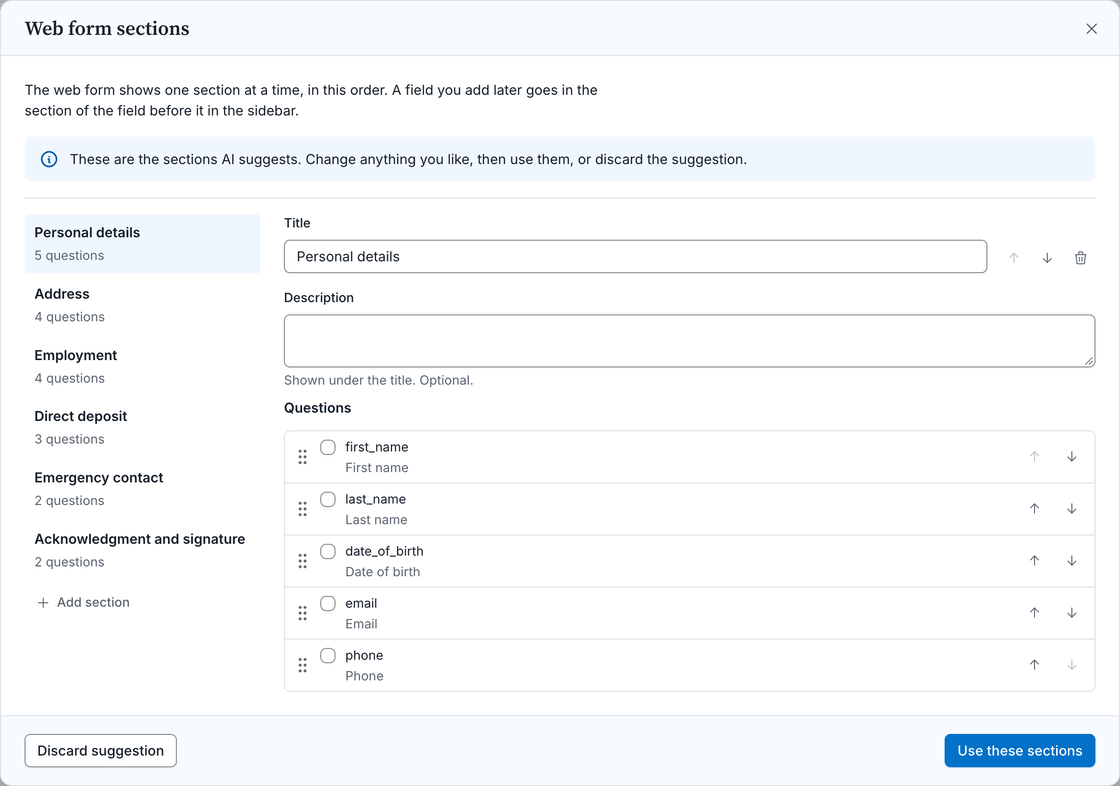
Sections. In the template editor, click Sections to split the template's web form into steps, give each one a title and a description, and put its fields in the order you want. Suggest sections asks AI to group the fields for you, which uses one AI page. Visitors see a step's errors before they move on to the next one.
-
A success screen. Once someone submits a web form, it thanks them in the form's place, with a Download PDF button when the template's submissions are public and a Fill out again button for the next person. Set its title and message in the template's Forms settings.
-
Image fields. Visitors add an image by choosing a file, dropping it or pasting it, or by giving its web address, and the form shows it before they submit. Large photos are resized in the browser, so they upload quickly.
-
Web Forms JS 3.0 puts the new form on your own site with
DocSpring.createWebForm. It loads no jQuery, works under a strict Content-Security-Policy, and takes your colors, fonts and spacing through CSS custom properties. Pages that embed a 2.x version keep working as they are. To upgrade, follow the steps in the Web Forms JS changelog.
