
Page Designer
With the Page Designer you build a new PDF in the template editor: you place text, pictures, tables, QR codes, barcodes and form fields on the page, and put your submission data in them. Each submission fills in the design and produces a PDF.
Create a page design
Section titled “Create a page design”Click Create Template, then Page Designer under Or start from a blank page. The design starts as an empty US Letter page with half-inch margins. Change the page size, orientation, margins and default font in the settings panel when nothing is selected.
With API v2, create a page design by sending template_type: "page_designer" and its layout as JSON to
POST /templates. The layout format
describes it. API v1 doesn’t create page designs.
The editor
Section titled “The editor”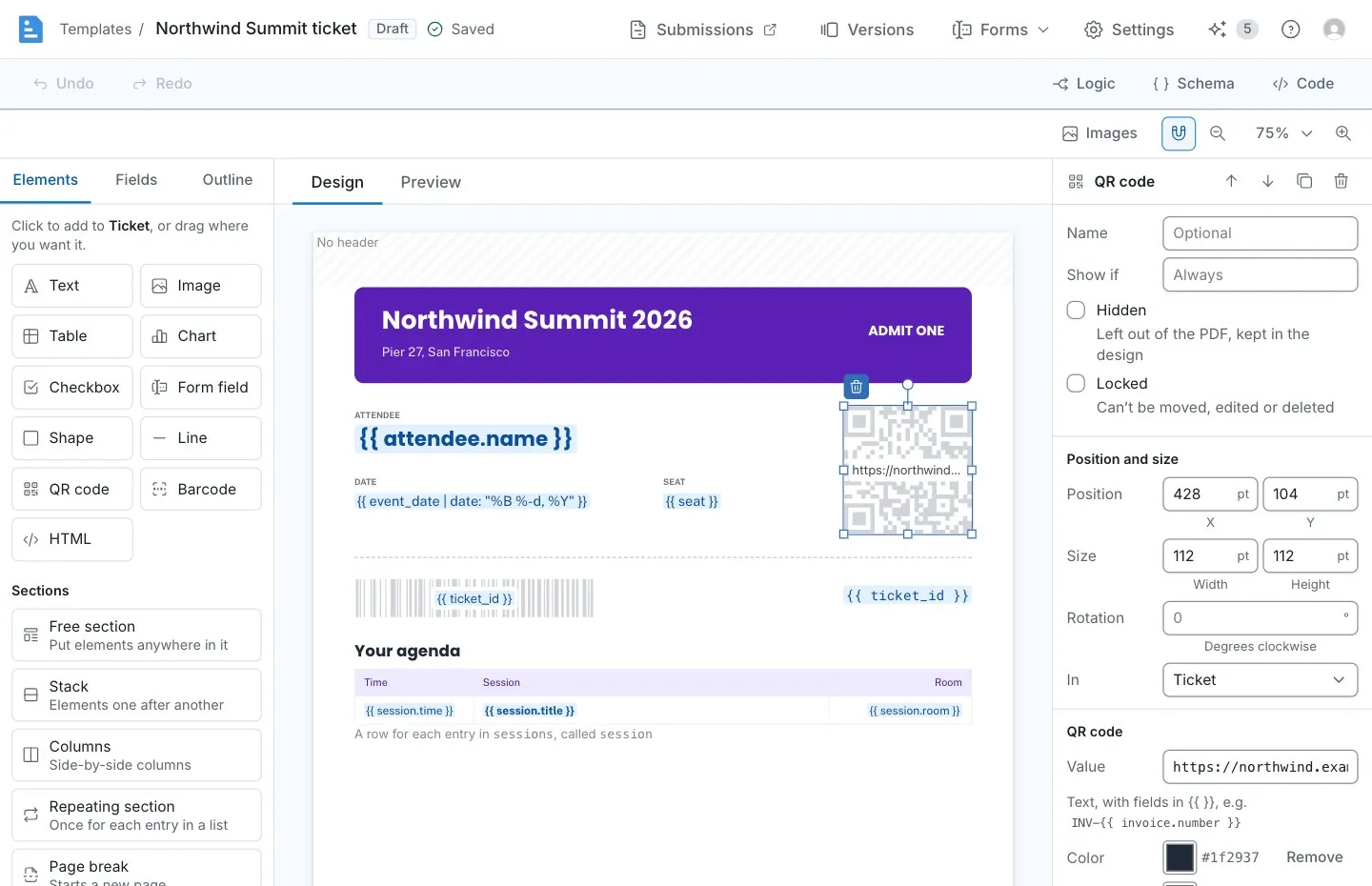
The Design tab shows the page, with three panels:
-
Elements (on the left) adds text boxes, images, tables, shapes, lines, QR codes, barcodes, form fields and HTML boxes, and the sections they go in. Click an element to add it to the selected section, or to a new section after it. A new table goes into a stack, so the elements after it move down as it grows.
You can also drag an element onto the page. The section, column, header or footer under the pointer is outlined. In a free section, the header or the footer, the element goes where you drop it; in a stack or a column, a line shows where it goes among the elements there. Dropped on a page break or outside the sections, it goes into a new section where the line shows.
-
Fields lists the template’s fields. Click a field to add a text box with it, or to insert it at the cursor while you edit text. A field in each item of a list adds every item’s value, separated by commas, or each item’s own value in a repeating section or table over the list. Click Table next to a list to add a table with a column for each of its fields. For a list in each item of another list, select a repeating section over the outer list first.
You can also drag a field onto the page. Dropped on a text box, it goes into the text where you drop it. Dropped anywhere else, it becomes a new element there: a text box with the field, a picture for an image field, or a table for a list (in a stack below the section, since a table grows with its rows). An image field in each item of a list can only be dropped inside a repeating section over that list. Signature and initials fields can’t go on the page (see Signature requests).
-
Outline shows everything on the page as a tree. Click an item to select it.
The settings panel on the right changes whatever is selected: the page, the header or footer, a section or an element. Element settings include a name, a condition, and Hidden (kept in the editor, left out of the PDF) and Locked (can’t be moved, resized, edited or deleted, alone or with its section; it can still be renamed, hidden or duplicated).
Drag a box in a free section, the header or the footer to move it, and its handles to resize it. It snaps to the edges of the other boxes and of its section; the magnet button in the toolbar turns snapping off, and holding Cmd (Ctrl on Windows) turns it off while you drag. Drag the round handle above a selected box to rotate it (hold Shift for 15° steps), or set its Rotation in its settings.
Changes are saved a second after you make them. The Preview tab shows the PDF filled in with sample data, and is made again after each save. A value the design adds up, charts or formats as money gets an example amount there, even when its field is text. The panels stay beside it, so you can change a setting and see the PDF change.
Double-click a text box to edit it. Select words and format them with the toolbar: font, size, bold, italic,
underline, strikethrough, text and highlight colors, links, alignment and lists. Each word can have its own
formatting. The Field menu inserts a field at the cursor. Fields show as {{ customer.name }}.
You can also type a field. Type {{ to see suggestions: use the arrow keys and Enter to pick one, or
press Esc to hide them. A tag you type yourself, such as {{ invoice.total | currency }}, becomes a field
when you type its closing }}. A new name becomes a new field when the design saves.
When the text is too long for its box, the box can Grow to fit it, Shrink the text down to a smallest size, or Cut off what doesn’t fit.
Sections
Section titled “Sections”Sections go down the page one after another, and each takes the space its content needs:
- A Free section keeps elements where you put them. Drag an element to move it, and drag its handles to resize it.
- A Stack lines its elements up one after another, down or across.
- Columns puts elements side by side. Each column’s width is its share of the section’s width: drag the space between two columns to change their widths.
- A Repeating section repeats its content for each entry in a list. Choose the list in For each entry in, and
the name each entry gets in Call each entry: inside the section, the entry’s values start with that name, such
as
line_item.descriptionfor a section overline_items. A new section or table names its entries after its list (line_itemsbecomesline_item). - A Page break starts a new page.
Give a section or an element a condition in Show if, such as customer.vip, and it’s only in the PDF when the
condition is true.
Tables
Section titled “Tables”A table has a row for each entry in a list, which you choose and name as in a repeating section. Each column has a heading and a cell, which you edit as text with fields from the row’s entry. Drag the border between two columns to change their widths. A table with more rows than fit on the page continues on the next one: its heading row can repeat on each page, and rows can be kept from breaking across pages.
Header and footer
Section titled “Header and footer”The header is drawn in the page’s top margin and the footer in its bottom margin, on every page. Select Header or
Footer on the page to add one. Each can have up to three page numbers (left, center and right), with text such as
Page {page} of {pages}.
Images
Section titled “Images”Click Image in the Elements panel and choose a file: it’s uploaded to the template and a new image box shows it. An image box’s settings can upload another image or choose one the template already has. Images can be PNG, JPEG, WebP or SVG files up to 5 MB.
The Images button in the toolbar lists the template’s images. Add one to the page in a new image box, upload more, or delete one that no image box shows.
An image box can also show an image field from the submission data. A submission fails with a message if an image box’s image has been deleted.
HTML boxes
Section titled “HTML boxes”An HTML box shows HTML and SCSS you write. Click HTML in the Elements panel to add one, then double-click it
(or click Edit the HTML and SCSS in its settings) to edit its code. The HTML and the SCSS can use fields and Liquid
tags such as {% if %} and {% for %}. In the HTML, values are escaped unless you add | raw. Insert an image
adds an <img> for one of the template’s uploaded images; an HTML box can’t show images from anywhere else. The SCSS
only applies inside the box. JavaScript is not supported.
On the page, the box shows its fields as {{ customer.name }} and the content of every {% if %}; the Preview tab
shows it filled in. When the code has a problem the design can’t save, such as a Liquid tag that isn’t closed, the
banner lists it with its line, and its link opens the box’s code. The
HTML element’s page lists what an HTML box can’t have.
Keyboard shortcuts
Section titled “Keyboard shortcuts”| Keys | Action |
|---|---|
| Cmd+Z, Cmd+Shift+Z | Undo and redo (Ctrl on Windows) |
| Enter | Edit the selected text box or HTML box |
| Esc | Stop editing, then clear the selection |
| Arrow keys | Move the selected element 1pt (10pt with Shift) |
| Delete or Backspace | Delete the selected element or section |
| Cmd+D | Duplicate the selected element |
| Cmd+S | Save now |
| Cmd+F | Search the fields in the Fields panel |
Fields
Section titled “Fields”DocSpring adds a field for each new value the design uses when it saves, with a type that fits how it’s used (for
example, a number for a value with the currency filter, and a list for a table’s rows). The editor saves as you type,
so a pause can add a field for part of a name: when the design stops using a value before you’ve changed its field, the
editor removes the field again. Other fields stay: if you delete the last text that uses a field, delete the field in
its settings too. A field you delete while the design still uses it isn’t added back.
Signature requests
Section titled “Signature requests”Page designs can’t have signature requests yet: they work with PDF templates. A page design doesn’t print signatures from the submission data, since a signature only comes from the person signing, and it has no signature fields to sign in a PDF reader yet. A picture of a signature is an image.
Embedded template editor
Section titled “Embedded template editor”Page designs can be edited in the embedded template editor, with the Design and Preview tabs and the same image uploads.