
Generate Model Code
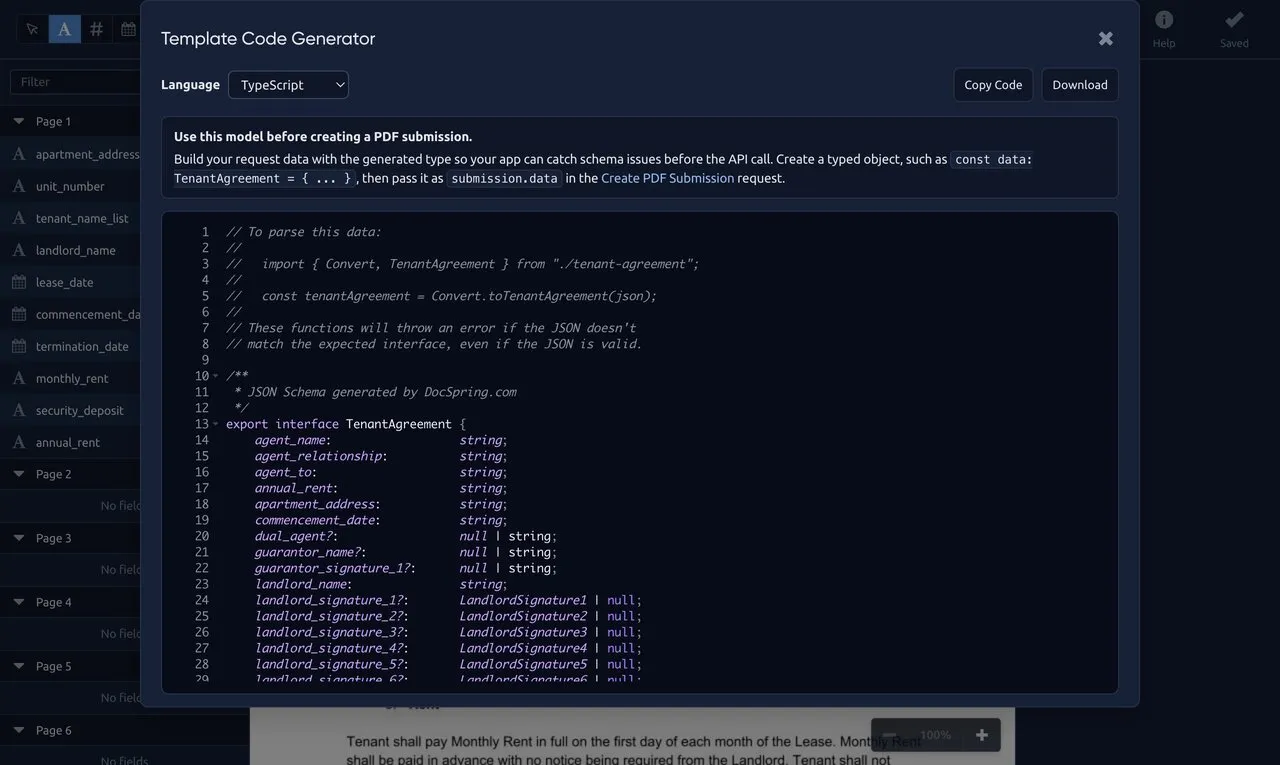
The template editor’s Code button turns your template’s fields into typed model code, so your application can build and check submission data before it calls the API. DocSpring generates the code from your template’s JSON schema with quicktype.
Opening the code generator
Section titled “Opening the code generator”Click the Code button in the editor header, next to Schema. Your template needs at least one named field before code can be generated. Until then the button is disabled.
The Schema button shows the raw JSON Schema for your template’s fields. The Code button turns that schema into ready-to-use model classes. Both use the template’s saved fields.
Languages
Section titled “Languages”Choose a language from the dropdown: TypeScript, JavaScript, Ruby, Python, PHP, Java, C#, Elixir or Go.
TypeScript is selected by default, and your choice is remembered the next time you open the generator. Use Copy Code to copy the result, or Download to save it to a file named after your template.
Date and time fields are typed as strings, in the same format you send them in submission data.
Namespacing
Section titled “Namespacing”For languages that support it, the generated types are wrapped in a namespace or package named after your template, and the type for the whole submission is called Template. Your other models stay out of the way of types like Address or Applicant.
| Language | Root type |
|---|---|
| Ruby | DocSpring::Templates::<TemplateName>::Template |
| C#, Elixir | DocSpring.Templates.<TemplateName>.Template |
| Go, Java | Template in the package <templatename> |
| TypeScript, JavaScript, Python, PHP | <TemplateName> (not wrapped) |
Using the generated model
Section titled “Using the generated model”Build your request data with the generated type so your application can catch mistakes before the API call, then pass it as the submission data.
Generating code with the API
Section titled “Generating code with the API”You can also fetch the code with the API, for example to keep your models up to date in a build step:
GET https://sync.api.docspring.com/api/v1/templates/{template_id}/model_code?lang=rubyThe response contains the code and the name of the root type. For a template called “Lease Agreement”:
{ "lang": "ruby", "root_type_name": "DocSpring::Templates::LeaseAgreement::Template", "code": "..."}Embedded template editor
Section titled “Embedded template editor”The Code button is hidden in the embedded template editor unless you turn on the showCode option.