Formulas
A Number field can be a formula that performs a calculation. Formulas can reference other Number fields. Formulas are configured in the default or static value for a Number field.
Formulas are calculated for PDF templates. HTML templates use Liquid filters instead.
In visual forms and signature requests, people can type over a formula that’s a field’s default value. The field’s ↺ button puts the formula’s result back (see Clearing Optional Fields).
Operators and Functions
Section titled “Operators and Functions”- Operators:
+,-,*,/,%(remainder),^(power) - A
%after a number makes it a percentage:price * 15% - Comparisons:
=,!=(or<>),<,<=,>,>= - Functions:
SUM,MIN,MAX,AVG,ABS,ROUND,ROUNDUP,ROUNDDOWN,IF,AND,OR,NOT - Math functions:
SQRT,CBRT,EXP,LOG,LOG2,LOG10,SIN,COS,TAN,ASIN,ACOS,ATAN,ATAN2,SINH,COSH,TANH,ASINH,ACOSH,ATANH,HYPOT
Function names can be written in any case (SUM or sum).
ROUND, ROUNDUP and ROUNDDOWN take an optional number of decimal places: ROUND(total, 2). LOG(value) is the natural logarithm, and LOG(value, base) uses another base.
IF(condition, value_if_true, value_if_false) chooses between two values:
IF(AND(hours > 40, overtime = 1), (hours - 40) * rate * 1.5, 0)Calculations use exact decimal arithmetic, so 0.1 + 0.2 is 0.3. Division is calculated to at least 32 significant digits.
Field References
Section titled “Field References”Formulas use the following syntax for referencing field names:
- Object keys are separated by a period (
foo.bar) - An array of numbers is referenced by its name (
SUM(foo)), and its items by position (foo[0]is the first item,foo[-1]is the last) - A field in a list of objects is referenced by its row (
items[0].price), or as a column of every row (SUM(items.price)) - Field names can be written in any case (
Totalandtotalare the same field) - A field name with spaces or punctuation goes in braces, written as it appears in the template editor:
{Unit Price},{Line Items/0/Unit Price}
The following table shows how to convert between the JSON Pointer syntax, and formula references:
| JSON Pointer | Formula Field Name |
|---|---|
| foo/bar | foo.bar |
| foo/bar/0 | foo.bar[0] |
| foo/0/bar | foo[0].bar |
| foo/1/bar/baz | foo[1].bar.baz |
| Unit Price | {Unit Price} |
| Items/0/Amount | {Items/0/Amount} |
A column, such as items.price, includes the rows that are on your template. items[5].price can only be used if your template has at least six rows.
Formulas can’t use:
- Fields in a list inside another list (such as
groups/0/items/1/price), or an array of numbers inside a row (such asitems/0/scores/1). These fields can’t have formulas either. - Fields whose names contain
{or}. - Two fields whose names only differ in upper and lower case. Rename one of them.
When you rename a field in the template editor, formulas that use it are updated to the new name.
Formulas in a List of Objects
Section titled “Formulas in a List of Objects”A field in a list of objects (such as items/0/total) can have a formula that is calculated for each row. Use @ to reference a field in the same row:
@price * @quantity- Nested fields in the row use periods:
@cost.amount - Names with spaces or punctuation go in braces:
@{Unit Price} - Other references work as usual, so a row can use fields outside the list:
@price * (1 + tax_rate) - Add up a column of row formulas with
SUM(items.total)
@ only works in formulas for fields in a list of objects. If a field’s name starts with @, use braces to reference it: {@name}.
Empty Fields
Section titled “Empty Fields”A formula is only calculated when your data doesn’t include a value for its field. If you send a value, that value is printed instead. If you send null, the field is left blank.
If none of the fields that a formula uses has a value in your data, the formula is left blank, so an empty form doesn’t print totals of 0. Default values don’t count. Once any of the fields has a value, the formula is calculated: empty fields count as 0, and fields with a default value use it.
A formula that uses one item of a list, like b[0] or items[0].price, only uses that item, so it stays blank while that item is empty, even if other items have values. SUM(b) uses every item.
Static fields don’t count either way, so subtotal * (1 + tax_rate) with a Static tax_rate stays blank until subtotal has a value, and a formula that only uses Static fields is always calculated.
A formula in a list of objects that uses fields in its row (with @) is left blank until one of those fields has a value in your data, so empty rows stay empty.
Errors
Section titled “Errors”The template editor checks your formulas when you save the template. A formula can’t be saved if it:
- Can’t be parsed, is longer than 5,000 characters, or has brackets or functions nested more than 32 levels deep
- Uses a field that isn’t a Number field on the template
- Depends on itself
- Contains a number that’s too large or too small to calculate
- Can’t be calculated whatever the values are, such as
b[5]when the arraybhas two items
The editor shows the problem under the field’s default value, and saves your changes once it’s fixed.
Some formulas can only be calculated with the right values. If a formula can’t be calculated, the submission fails and no PDF is generated. The submission’s error message names the field and the problem, for example: The formula for 'ratio' divides by zero. This happens when a formula:
- Divides by zero, including dividing by an empty field (which counts as
0) - Uses a field whose value isn’t a number, or is too large, too small or too long (over 1,000 characters) to calculate
- Uses a math function with a value it can’t calculate, such as the square root of a negative number or the logarithm of
0 - Produces a number that is too large or too small to calculate
- Uses a row that isn’t on your template, such as
items[5].pricewhen your template has two rows
To avoid dividing by zero, check the value first:
IF(b = 0, 0, a / b)Visual forms calculate formulas as you fill them in. If a formula can’t be calculated with the values you entered, the form shows the problem on the field and can’t be submitted until you change the values.
Signature Requests
Section titled “Signature Requests”A formula can only use the sender’s data and the fields of the signer who fills in its field, so one signer’s values
can’t change what another signer saw and signed. A formula field that no signer is asked to fill in is calculated from
the fields it uses, so it can use the sender’s data and one signer’s fields: that signer sees it calculated as they fill
in the form, and can’t change it. API v2 refuses to create signature requests
where another signer’s fields feed a formula, or where more than one signer’s fields feed a formula that no signer
fills in, and names the field in a 422 error.
Conditions
Section titled “Conditions”Formulas are calculated before conditions are checked, so a condition can use a formula’s result, such as showing a field when total is greater than 10000. A formula field that a condition hides isn’t printed. Formulas use the values of the fields they reference, even when a condition hides those fields.
Intermediate Variables
Section titled “Intermediate Variables”You may want to split up a calculation into multiple steps, or re-use the result of one calculation in multiple places. You can do this by creating a Number field that is both Static and Hidden.
This field will function as an intermediate “variable” that can be referenced by other formulas, but it will not be part of the API schema, and it is not displayed on the PDF.
Example
Section titled “Example”Here’s an example template that demonstrates a number of different features.
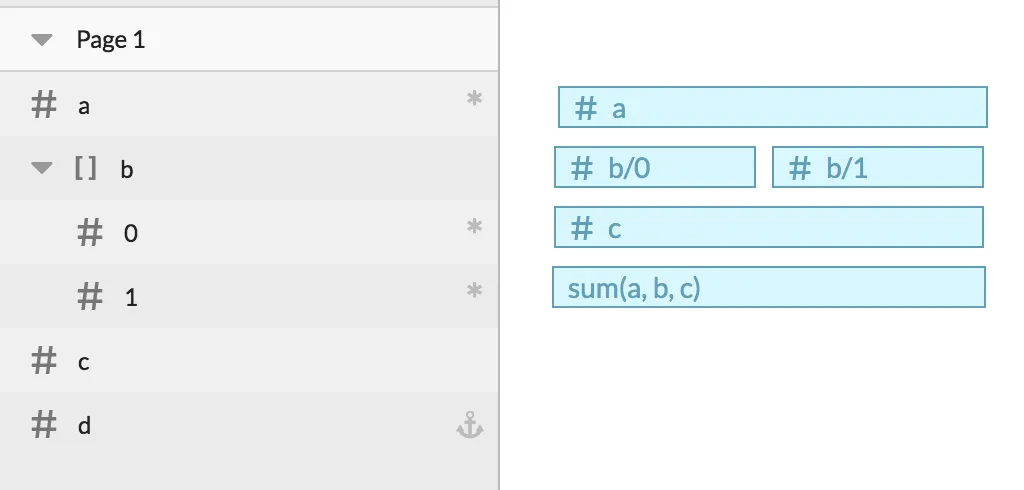
| Field Name | Required? | Static? | Default or Static value |
|---|---|---|---|
a | Yes | No | - |
b/0 | Yes | No | - |
b/1 | Yes | No | - |
c | No | No | max(b) |
d | No | Yes | sum(a, b, c) |
Notes:
Section titled “Notes:”aandbare both required fields.bmust be an array that contains two numbers.- If
cis not provided, the default formula will calculate the maximum value from thebarray. dis a static field, and can only be computed from the other fields.dis not part of the API.
Given the following data, which doesn’t include c:
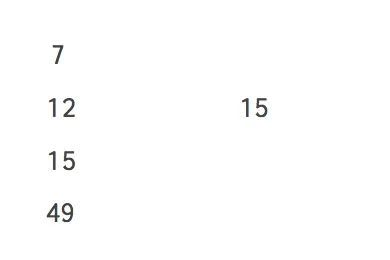
{ "a": 7, "b": [12, 15]}The generated PDF will show the following results: