
Template Versioning
We're excited to announce that DocSpring now supports Template Versioning!

This update allows you to maintain multiple template versions (e.g., 1.2.3) and manage a safe "draft" vs. "production" workflow, so you can make changes to your templates without breaking any existing integrations.
Highlights
-
Draft vs. Published Versions
Each template now supports a "draft" version for in-progress changes, as well as published versions that you can refer to in your existing code or API integrations.
-
Semantic Versioning (major.minor.patch)
Templates support version strings like
1.2.3. You can automatically increment version numbers when publishing new changes. We recommend incrementingminorand/orpatchfor backwards compatible changes, andmajorfor breaking changes (e.g. new required fields, or changes to the PDF.) - API Support
- Generate Submission: Accepts an optional
versionparameter (e.g.1.2.3,draft, orlatest). The API will use the latest published version by default, or the draft template if no versions have been published. - Publish & Restore Template Versions: New endpoints to manage template versions. Publish a new version, or restore a published version to the draft.
- Copy / Delete: These existing API endpoints now support versioning, including partial version strings. You can now duplicate a published template version to create a new draft template. You can also delete specific template versions.
- Generate Submission: Accepts an optional
-
Audit Trails & Submissions
Submissions now store the exact template version that generated them. You can see this version in the Submission pages, letting you track precisely which version was used.
-
Reprocessing Submissions
We have redesigned the "reprocess" button to open a form that allows you to select a specific template version. You can resubmit submission data to fill out the latest published template, the draft template, or a specific version.
- UI Updates
- Versions Tab: A new "Versions" link in the template dropdown menu opens a Versions modal.
- Locked Templates: Instead of the blocking "locked" modal, we now display a version badge in the header. You can now easily lock and unlock templates by visiting the template settings.
Getting Started
- Publish a Version
- Make changes to your draft in the Template Editor.
-
Open the Versions modal and click the "Publish version" button to open the "New Version" form.
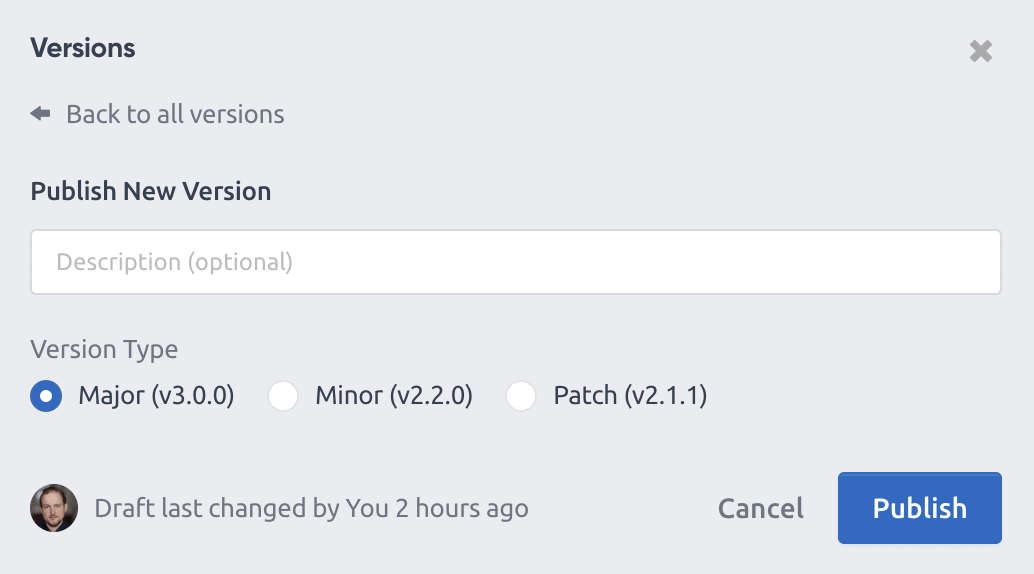
- Enter an optional description for the new version and choose which version number to increment: "major" (v1.0.0), "minor" (v0.1.0), or "patch" (v0.0.1). You can also publish a new version via the API (see docs for details).
- Use a Specific Version in Your Integration

  POST /api/v1/templates/<TEMPLATE_ID>/submissions
  {
    "version": "1.0.0",
    "data": { ... }
  }
If you omit version, we'll automatically use the latest published version, or the draft if none are published. You can also specify a partial version (e.g. 1.0 or 1), and this will find the latest matching version. Other possible values are: draft, and latest.
- Restore or Copy an Older Version
- Click "Restore to Draft" in the UI or use the new "restore version" API endpoint to roll back your template to a previous version.
- Or you can copy an older version to a brand-new draft, preserving the original as-is.
View Changes Between Templates
When publishing a new version, you can see how many fields or settings have been changed in the draft template:

You can click this text to view the full details.

There is also a "Show Changes" link in the dropdown menu for each version.
View Older Versions
You can view an older version by clicking on the row in the versions table. Published versions cannot be modified, so this will load a read-only version of the template editor. You can click on fields to view their properties, or open the Settings page to view template settings.

Documentation
See detailed API examples in our API Reference Docs.
All of our API client libraries have been updated to support the new template version parameters. Here are the latest versions:
- C#: DocSpring.Client v3.1.0
- Elixir: docspring v2.1.0
- Go: docspring-go v2.1.0
- Java: DocSpring v2.1.0
- JavaScript: docspring v2.1.0
- PHP: docspring v2.1.0
- Python: docspring v2.1.0
- Ruby: docspring v3.1.0
- TypeScript: docspring-ts v2.1.0
If you have any questions or feedback, reach out to our support team.