

Install DocSpring on AWS with Convox
These instructions install DocSpring Enterprise on AWS with Convox. They set up a
highly available, auto-scaling EKS (Kubernetes) cluster to run DocSpring. The
install script also sets up Postgres (RDS), Redis (ElastiCache) and an S3 bucket
for file storage. Convox writes Terraform config for all of these resources, so
once your Convox Rack is running you can manage your infrastructure with the
terraform CLI and keep the config in a git repository.
The install uses the free and open source Convox Rack to set up your cluster and resources. Convox also offers a hosted Console that you can sign up for at convox.com. Your installation doesn’t need it: see Convox Console.
We also recommend reading the Convox documentation.
Requirements
Section titled “Requirements”- An AWS account with administrator permissions.
- The access key ID and secret for DocSpring’s Docker registry, and your DocSpring license key. We send these to you by email.
Install the Convox and AWS CLI tools
Section titled “Install the Convox and AWS CLI tools”On macOS:
brew install convox awscliconvox --version # Should be at least 3.18.6aws --version # Should be at least 2.15.54For other platforms, see the Convox installation instructions and the AWS CLI installation instructions.
Install Ruby and Bundler
Section titled “Install Ruby and Bundler”The install script needs Ruby 2.5 or later (3.x is fine) and Bundler:
ruby --version # Should be at least 2.5bundler --version # Should be at least 1.0.0See the Ruby installation instructions,
then run gem install bundler.
Create a temporary AWS access key for an admin user
Section titled “Create a temporary AWS access key for an admin user”-
Sign in to your AWS account.
-
Click Users.
-
Click Add User.
-
Set the username to
docspring-enterprise. -
Click Next.
-
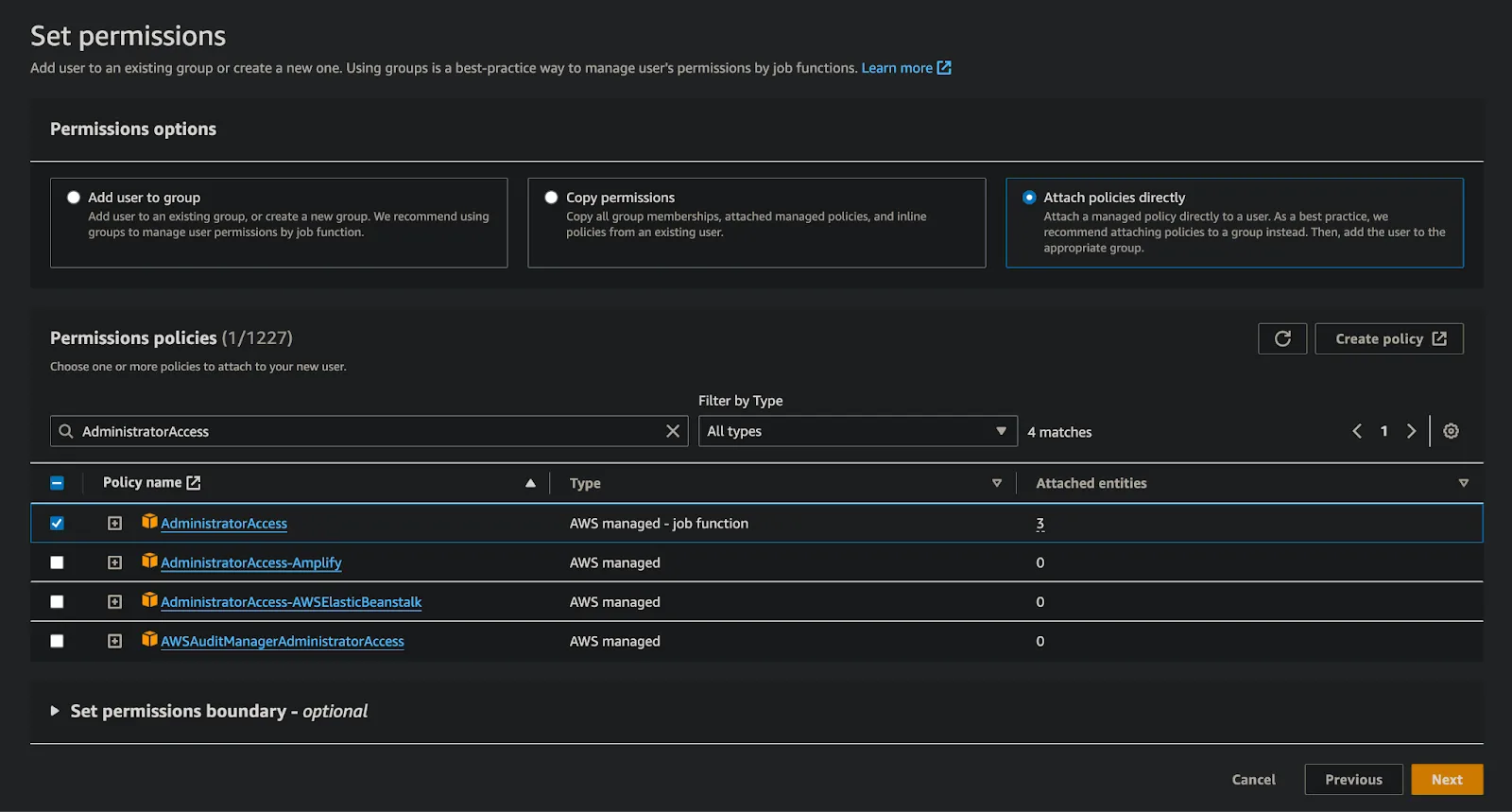
In the Permissions options section, select Attach policies directly.
-
In the Permissions policies section, type
AdministratorAccessinto the search input. -
Check the box for the AdministratorAccess policy (only the first one).
-
Click Next.
-
Click Create user.
-
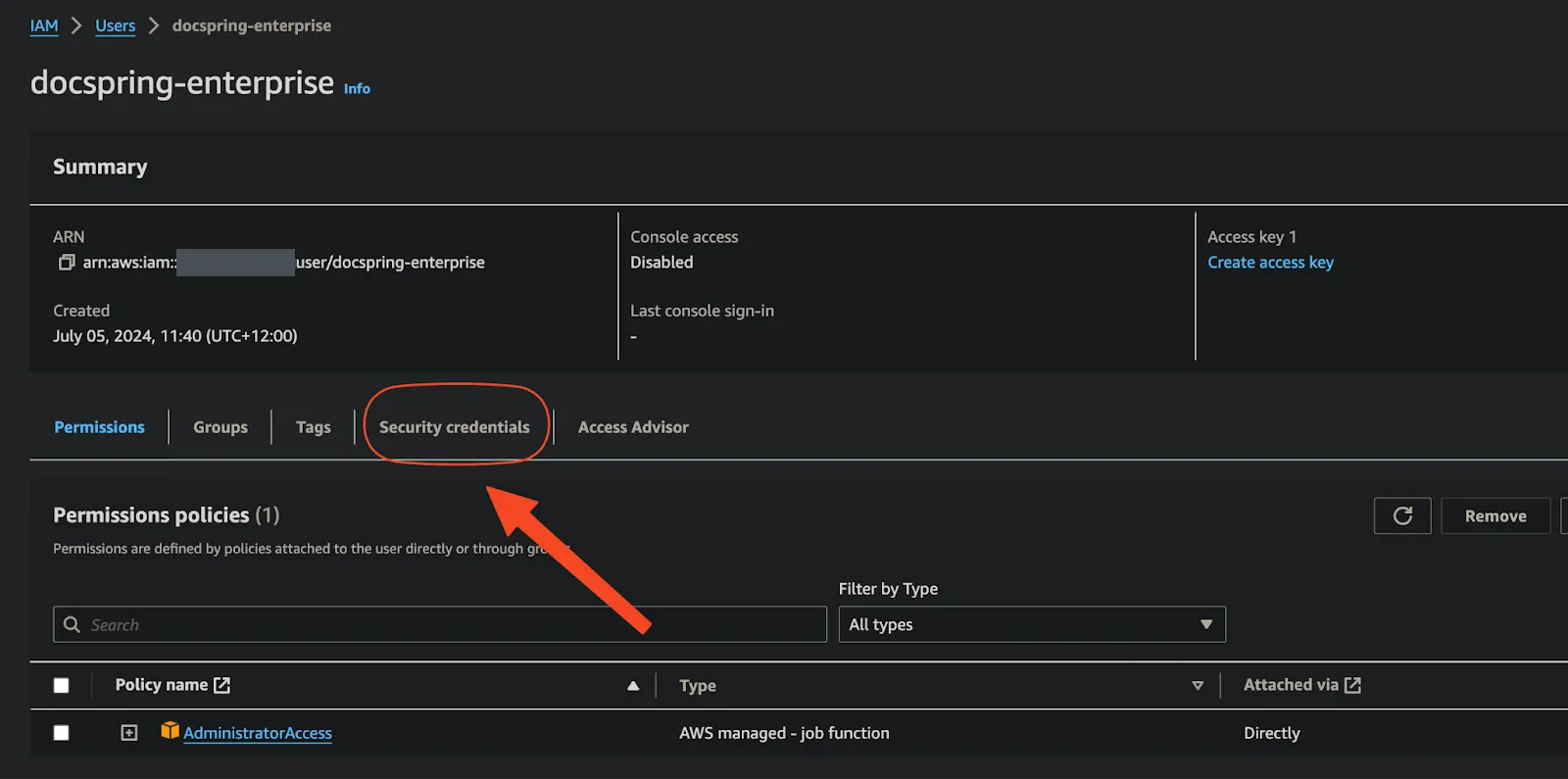
Click the
docspring-enterpriseuser. -
Click Security credentials.
-
Scroll down to the Access keys section and click Create access key.
-
Click Other, then Next. (You can ignore the details on this page.)
-
Click Create access key.
-
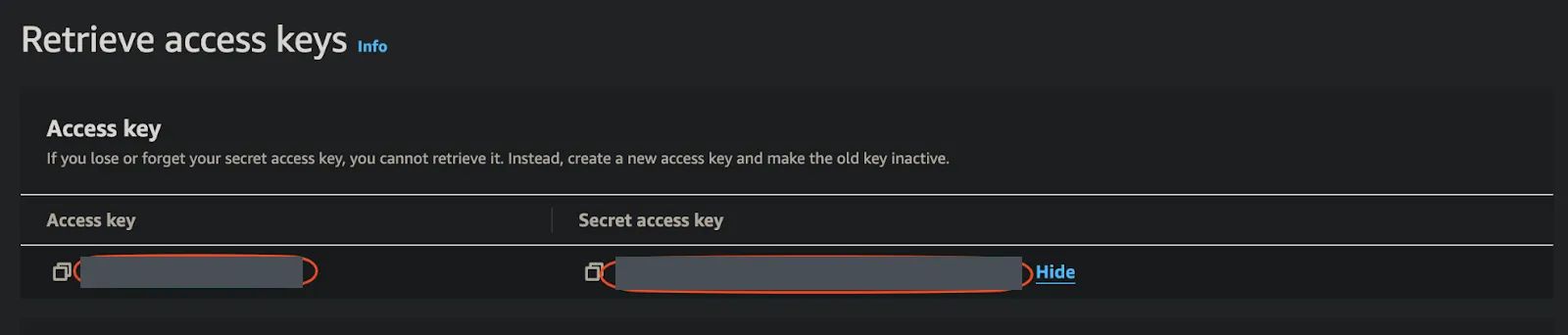
Click Show to reveal the secret access key.
-
Copy the access key ID and secret. You’ll need them for the install script.
Clone the docspring_enterprise repository
Section titled “Clone the docspring_enterprise repository”This repository contains a Convox configuration file and the install script that sets up your infrastructure on AWS. Go to the directory where you keep code (or your home directory) and run:
git clone https://github.com/DocSpring/docspring_enterprise.gitcd docspring_enterpriseRun the install script
Section titled “Run the install script”The install script doesn’t change any existing resources or services in your AWS account. Convox can also remove everything it creates, if you need to uninstall DocSpring or start again.
Run the install script:
./install.rbThe script asks for your AWS region (default: us-east-1), the access key ID and
secret of your AWS admin user, a name for your Convox installation, the access key
ID and secret for DocSpring’s Docker registry, your DocSpring license key, and an
email address for the DocSpring admin user. It generates a random password for the
admin user. It then shows a summary and asks you to confirm:
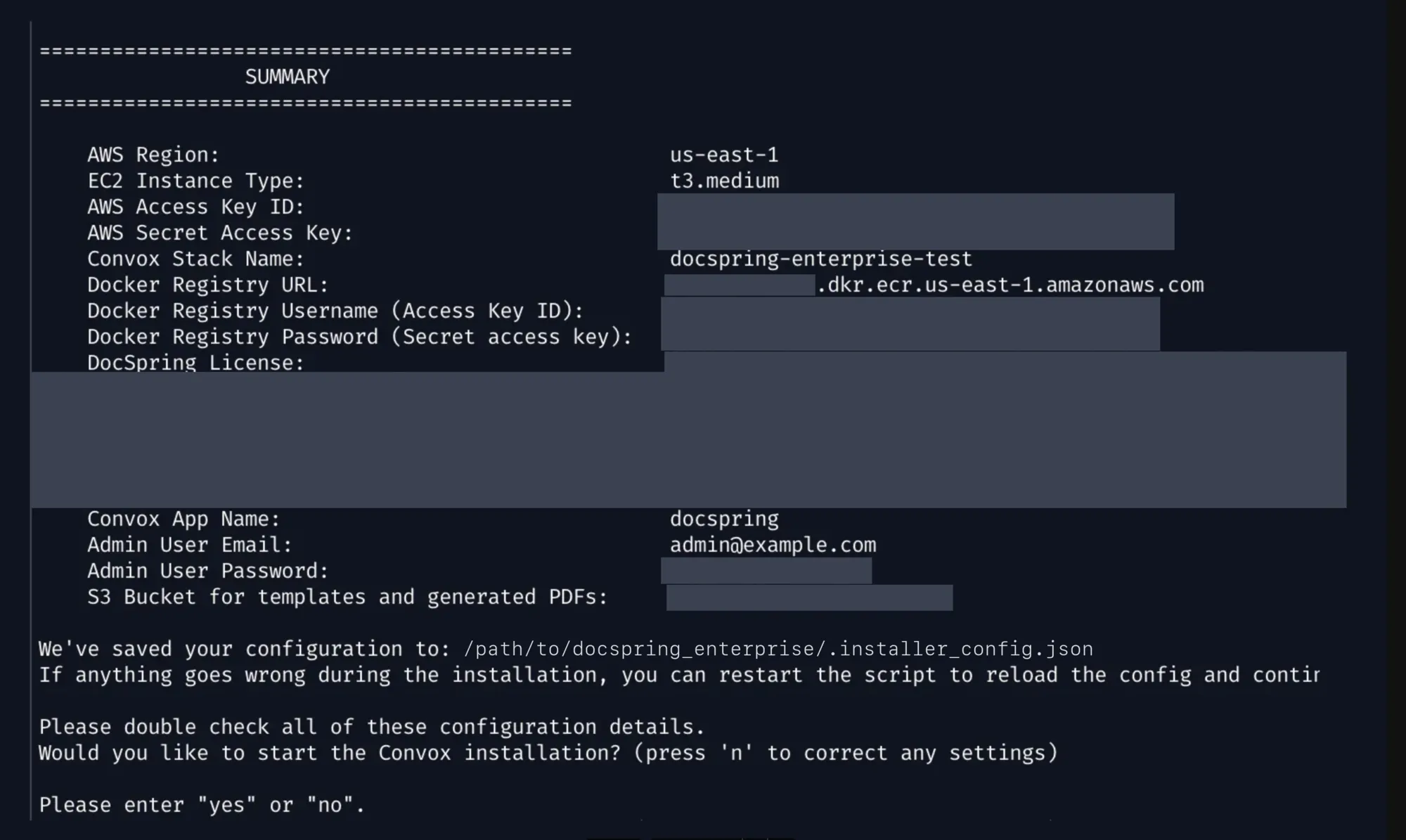
Enter yes to continue.
The script now creates all the resources in your AWS account. It creates the EKS cluster (about 10 to 15 minutes), then the Postgres and Redis resources (another 10 to 15 minutes) and the S3 bucket, and deploys DocSpring. The whole process takes about 30 minutes.
When the script has finished, it prints your DocSpring installation’s address and the admin user’s email and password. Sign in with them, then set up your templates and start using the DocSpring API.
Pin the Docker image version
Section titled “Pin the Docker image version”The default convox.yml uses the latest Docker image. We recommend pinning a
version so that you decide when to upgrade. Add the version tag (e.g.
:2724aeb4) to the end of the image URL for every service in convox.yml
that has an image: line (web, worker and command). For example:
image: <account_id>.dkr.ecr.us-east-1.amazonaws.com/docspring/enterprise:2724aeb4The DocSpring Enterprise releases page lists every version tag.
Set up a custom domain and SSL certificate
Section titled “Set up a custom domain and SSL certificate”Follow our guide to set up a custom domain and SSL certificate.
Revoke the admin user’s access key (optional)
Section titled “Revoke the admin user’s access key (optional)”You don’t need the docspring-enterprise admin user once the installation has
finished: Convox creates its own IAM user with limited permissions. To protect your
AWS account, revoke access keys that you no longer use. In IAM, click the
docspring-enterprise user, go to the Security credentials tab, and click
Make inactive on the access key. You can also delete the user.
Health checks
Section titled “Health checks”DocSpring has a health check endpoint at /health. When everything is working,
it responds with a 200 status code and the body success. It checks the database
connection, the Redis connection and the Rails cache.
/health/site is a minimal health check that only checks that the Rails
application has booted and can respond to HTTP requests.
Back up your Terraform state
Section titled “Back up your Terraform state”Convox creates a Terraform config directory in your home directory. On macOS, it
is at ~/Library/Preferences/convox/racks/<rack name>.
You can cd to this directory to inspect the Terraform config and state, make
changes, and run terraform plan and terraform apply. See
Convox CLI and Terraform.
We recommend initializing a git repository in this directory to back up your
Terraform config and state. Be careful with these files: they contain API tokens
and other sensitive information. If you store the repository on GitHub, encrypt
your tfstate file with git-crypt or a
similar tool.
Configuration
Section titled “Configuration”The environment variables
page lists every way to configure DocSpring. You can also visit the /admin/system
page on your DocSpring installation to see the configuration variables and their
current values.
Set environment variables with convox env set VAR=value. For example:
convox env set DOCSPRING_POSTMARK_API_TOKEN=<your Postmark server token>You can also use third-party services to monitor your installation:
- Performance monitoring: Skylight (set
SKYLIGHT_AUTHENTICATION). - Logs and infrastructure: services such as New Relic, Datadog, Loggly and Papertrail.
- Uptime and scheduled jobs: services such as UptimeRobot, NodePing, Cronitor and Cronhub. Uptime monitors can check the health check endpoints.
Further resources
Section titled “Further resources”- Upgrade DocSpring to the latest version (latest DocSpring release)
- Upgrade Convox and Kubernetes (latest Convox release)
- Work with the Convox CLI and your Terraform config
- Convox documentation
Contact [email protected] if you need any help.